
Forum Replies Created
-
AuthorPosts
-
Just tried it on an older laptop and had the same issue, except it didn’t squeal when I shut down.
That is most odd, I did notice the other day when I was looking at the specs for your Toshiba Canvio 1tb External Hard drive that NTFS filing system was required ? System Requirements – Formatted NTFS for Microsoft Windows 10, Windows 8.1, Windows 8, Windows 7
Ntfs is the just the way it is organised on the drive itself is it not? Larger drives are ntfs, smaller USBs are fat32?
You need to login in order to vote
<p style=”text-align: left;”>
I assume you plugged in then unplugged USB HDD ? event id: 10016 can usually be ignored. but it is odd no other Warnings etc ! Q. do you have a second Windows PC/Laptop to see if the issue is the same on second windows device ? Q1. Try logging onto your PC with Admin account (permisions) to see if this helps ? Q3. make sure Windows is upto date and update driver for USB HDD to correct version . I am just wondering if it is some form of AV you are using? I will have a dig today on my laptop to investigate also<noscript>
 </noscript> Edit; Device Manager -> Disk Drives. Policies, Check the configuration of each device under disk drives. Under one of the options, check if option is available to select between “quick removal” and “performance”. choose performance.
</p>
I did, yes.Just tried it on an older laptop and had the same issue, except it didn’t squeal when I shut down.
The logon being used is the admin.
Windows is up to date, and the driver also.
Currently using standard windows security software, which is up to date I believe.
I switched that option to performance. No joy unfortunately, the same thing happens.
I figured out what I was searching wrong in Process Monitor (no back slashes or one too many 🙈). I found that when it is plugged in, Explorer.exe is accessing every folder on the drive, but that is the only process listed. When I eject, I get no results.
It seems like the light goes off after the same idle time every time, and this does not correspond to the eject. The eject function simply isnt working ie not communicating or not over-riding something🤔
Thanks again.
You need to login in order to vote
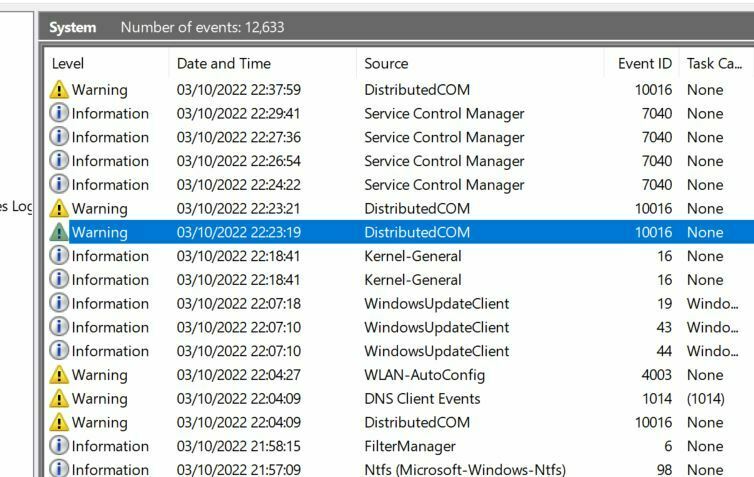
If you want to see exactly what is going on, try… @ Search Bar type “eventvwr” Open up “Windows Logs” then “System” Then plug in or unplug HDD and see if any Warnings are given, then double click on Warning (yellow) Triangle. You can also Right click on “system” to set specific filters etc.
Thanks. Please see attached. I am not sure what these errors are or whether they are connected with the drive. The non-warning ‘NTFS’ entry states therein that the drive is running as it should……
Attachments:
You need to login in order to vote
When I have used this tool, I either just look at <Filter by name> to see what services are running by manufacturer or type in the name i.e. EPSON or NVIDIA etc. Type in ‘Toshiba or Canvio’ and see what this gives you and try TOS and CAN to see what if tht works ?
Thanks again.
So nothing showed up for the full names, but for TOS a couple did. It wasn’t clear from the results that these processes were connected with the drive, or if they were, how. One was Yourphone.exe. I uninstalled that using some copied Powershell code. The other was an instance of Explorer.Exe, linked with file called ‘C:\Users…..AppData\Local\Packages\Microsoft.Windows.Photos_……….\RoamingState’.
However, again, when I run the search while the drive is not connected (using ‘Tos’ again), the same result comes up.
You need to login in order to vote
Maybe its use as backup disk or there are running antivirus processes. Or you opened an .iso which is mounted as drive or zip and blocking the HDD. Whats happening if you deactivate drive and/or usb in device-manager? Sorry, I didnt understand the meaning of eject in the initial posting. I cant eject a HDD/SSD only remove it from PC (=unplug USB connector). I only eject a disc from CD/DVD drive, but I cant eject the drive itself, it can only be removed in my understanding.
Its not a backup and no isos open, at least none that I have.
When i eject it, it no longer shows in Device Manager.
Thanks for responding.
<p style=”padding-left: 40px;”></p>You need to login in order to vote
I recall there used to be a way to identify which services or applications were accessing a drive at a given time, but I cannot remember how to find it….
I use ‘Process Explorer’ great little program to download and see what is running https://learn.microsoft.com/en-us/sysinternals/downloads/process-explorer
Thanks, I ran this app. Is there a way to filter the displayed processes down to what is using the drive?
I tried to follow the steps here:
https://www.imatest.com/2017/01/how-to-determine-what-processes-are-using-a-device/
Nothing comes up when I do the device search ( Find > Find Handle or DLL).
I tried finding by the drive (eg E:), but a million and one processes come up so that method of searching doesnt seem to work either (similar results occur when the search is conducted without the device connected). 🤔
Thanks again.
You need to login in order to vote
<p style=”text-align: left;”>
click “remove HW” on taskbar right side and remove this drive before unplug USB.
Past that point. Please see original post.</p>
You need to login in order to vote
Nope, no message like this.
Thanks, will do.
I recall there used to be a way to identify which services or applications were accessing a drive at a given time, but I cannot remember how to find it….
You need to login in order to vote
Thanks, yeah I thought that was what I was hearing. My experience with disks in the past was that they always stopped moving after the eject got ok’d.
Yeah, Windows 10 Home.
You need to login in order to vote
-
AuthorPosts

 </noscript>